

Building a more efficient home office with USB connectivity and better cable management
Learn how to select a USB hub, choose compatible USB-C cables, connect peripherals and organize a more efficient home office
A MODERN HOME office often contains more connected devices than the desk was designed to accommodate. A laptop may need to connect to an external monitor, keyboard, mouse, webcam, microphone, external storage drive, and other accessories. When every device requires a separate port, even a capable computer can become difficult to use comfortably.
A well-planned USB setup can make this environment more manageable. By choosing the right hub, understanding USB standards, and using suitable cables, people can reduce connection problems and create a workspace that is easier to maintain.
Why Laptop Ports Can Become a Limitation
Many modern laptops prioritize portability, which means they may offer fewer physical connections than older desktop computers. A thin laptop might have only a few USB-C ports, even though its owner needs to connect several accessories at once.
This can create a frustrating routine. An external drive must be disconnected before a webcam can be connected, or a keyboard has to be removed whenever another accessory is needed.
A USB hub provides additional connection points through a single host connection. Depending on the model, it may offer USB-A ports, USB-C ports, card readers, Ethernet, HDMI, or other interfaces.
Before buying one, list the devices you want to connect. A hub with many ports is not automatically the best option if it lacks the interface or performance required by your equipment.

Choosing a USB Hub for Your Workspace
A USB hub can help consolidate frequently used peripherals into one accessible location. For someone who works from a laptop, this can make it easier to connect a keyboard, mouse, storage device, and other compatible accessories without repeatedly reaching for the computer’s ports.
The important question is what the hub must support.
A basic hub may be sufficient for a keyboard, mouse, and low-bandwidth accessories. A workspace involving external storage or multiple high-resolution displays may need a more advanced dock or hub with specific data, video, and power capabilities.
Check the following specifications before choosing a model:
- Data-transfer speed: Important when working with large files or external storage.
- Video support: Confirm the supported resolution, refresh rate, and display configuration.
- Power delivery: Determine whether the hub can pass power to the laptop and whether its power requirements are suitable.
- Port selection: Make sure it includes the connections used by your existing accessories.
- Operating-system compatibility: Check support for your computer and any required software or drivers.
A USB-C connector does not guarantee that every hub supports video output, high-speed data, or laptop charging. The computer’s port and the hub must support the relevant features.
Understanding the Role of USB-C Cables
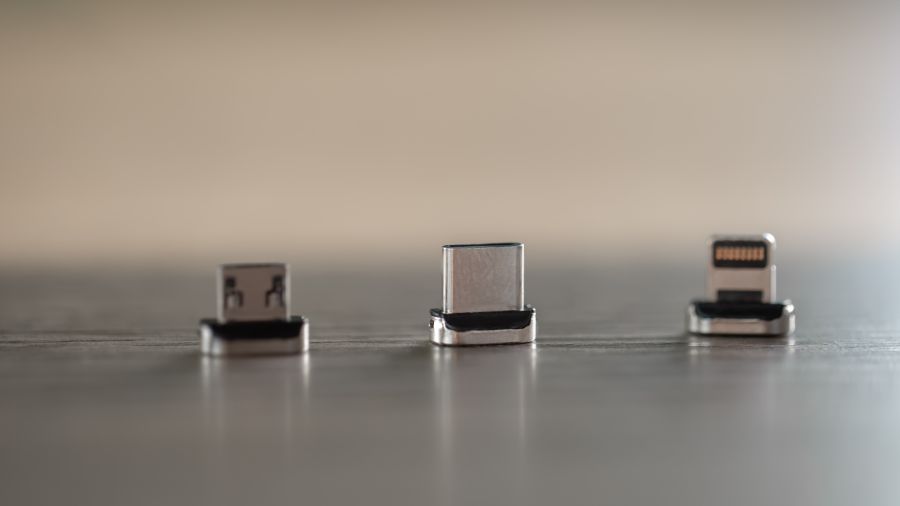
The cable connecting your laptop to a hub can affect the entire setup. USB-C describes a connector type, but cables with the same physical connector can have different data rates, power capabilities, and support for display signals.
A USB-C cable should therefore be selected according to the devices and features involved.
For example, a cable used only for charging a phone may not provide the performance required for a high-speed external drive. Similarly, a cable that supports charging may not support the display configuration you expect.
Check the manufacturer’s specifications for the required data rate, supported power, and display functionality. If a hub includes a detachable host cable, confirm that any replacement cable supports the same functions.
Cable length also matters. A longer cable may help organize a desk, but the supported performance depends on the cable’s design and the standard being used. Avoid assuming that every inexpensive cable can replace the one supplied with a high-performance dock.
Connecting Multiple Displays and Peripherals
Some home offices use an external monitor as the main screen while keeping the laptop open for communication and secondary tasks. Others use two monitors for spreadsheets, editing, research, or development.
A hub or dock can simplify the physical connections, but display compatibility needs careful attention. Video output may depend on the laptop’s USB-C capabilities, DisplayPort Alt Mode, Thunderbolt support, or DisplayLink technology.
These systems are not interchangeable. Some solutions require compatible hardware or software, and supported display resolutions may change when multiple screens are connected.
Before purchasing a hub, confirm that your laptop can deliver the required number of displays at the resolutions and refresh rates you need. Check the hub’s specifications as well. This prevents the common mistake of buying an accessory based on the connector alone.
Power Delivery and Desk Convenience
A suitable hub or dock may allow a compatible laptop to receive power through the same connection used for peripherals. This can reduce the number of cables running across the desk.
However, power delivery has limits. The dock’s input, its maximum power output, and the laptop’s charging requirements all need to be compatible. Some power is also used by the hub and connected devices.
If your laptop requires more power than the hub can provide, it may charge slowly or continue to lose battery during demanding tasks. Check the manufacturer’s recommended power requirements before relying on a dock as the computer’s main power source.
Troubleshooting Common USB Problems
When a device fails to connect, start with the simplest checks. Confirm that the cable is fully inserted, the device is powered, and the selected port supports the required function.
If an external drive disconnects repeatedly, try another port or a known-compatible cable. High-power peripherals may need their own power source rather than relying entirely on the hub.
For display problems, verify the laptop’s supported output and the monitor’s selected input. Installing relevant operating-system updates can also help resolve compatibility issues.
When possible, test one accessory at a time. This makes it easier to identify whether the problem comes from the cable, hub, computer, or connected device.

A Cleaner and More Reliable Workspace
Once the correct hardware is selected, arrange the desk so that frequently used connections remain accessible. Position the hub where cables can reach without being stretched, and secure longer cables with clips or organizers.
Keep ventilation openings clear and avoid trapping adapters beneath papers or other materials. Inspect cables regularly and replace damaged ones rather than continuing to use them.
A consistent setup can save time each morning. Instead of reconnecting each peripheral separately, you can connect the laptop to the hub and begin working with the usual accessories already in place.
Conclusion
A productive home office depends on more than a powerful laptop. The right USB hub, compatible cables, and a clear understanding of data, video, and charging requirements can make a workspace easier to use.
Before buying new accessories, identify the devices you need to connect and verify the capabilities of your computer’s ports. Would your current workspace benefit more from additional USB connections, faster external storage, or a simpler one-cable docking arrangement?